
Cloud PC & Hardened RDS Infrastructure: Secure Workspaces
We provision, host, and keep high-performance virtual corporate workstations across Kolkata, Ahmedabad, and PAN-India enterprises. Eliminate physical data theft risks, expensive endpoint hardware overhead, and broken local application setups with centralized, high-availability remote computing solutions.
What is Hardened Cloud PC Infrastructure?
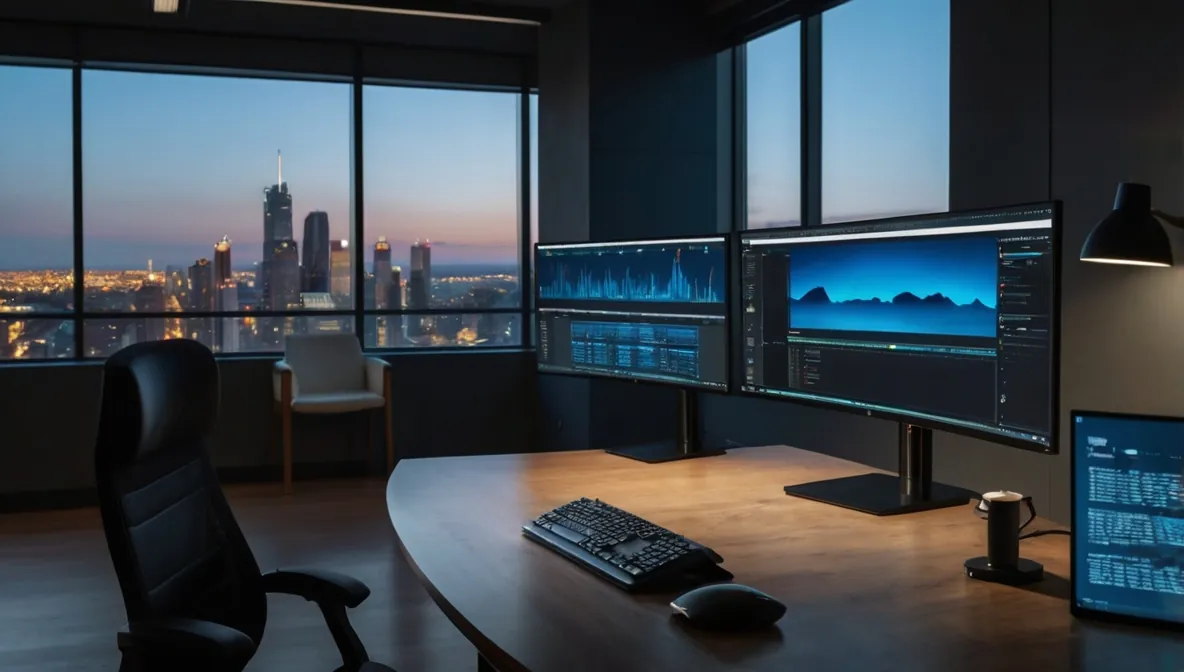 Figure 1: High-availability virtual desktop environment showing isolated port mappings and thin client endpoints.
Traditional office computing forces you to buy expensive physical computers for every single staff operator. You jam a local hard drive, an operating system, and corporate applications into a local plastic box. That setup is a massive operational anchor. If a machine chokes mechanically, that employee sits completely idle for hours. It leaves corporate data exposed to local theft loops and unverified flash drive copies.
Cloud PC infrastructure shifts your entire operating framework into a secure, centralized environment. The actual operating system, memory blocks, and business software run entirely inside a protected off-site rack. Staff members use simple, low-cost terminal devices or thin clients to connect safely, reading an interactive pixel mirror stream fired across the web. The local terminal handles zero data footprint internally, delivering enterprise datacenter security straight to their desks.
Why Hardened RDS Deployment Matters
When remote staff handles sensitive company data on personal home laptops, your business security layout vanishes. Employees can copy files onto unmanaged external drives or inadvertently contract spyware while browsing personal links. That malware can sniff out corporate server login details instantly. In unmanaged workspaces, a single compromised laptop can spread ransomware directly into primary internal database stores.
A hardened Remote Desktop Services (RDS) deployment creates an isolated perimeter around corporate assets. It confines primary applications within strict terminal boundaries, granting absolute control over outbound transmission vectors. We can block local drive mapping routines and disable text copying across the remote interface container. Your sensitive financial ledgers and data records never leave your core server zone.
Real-Life Staging: The Custom Secure Port Fix
We base our integration blueprints on hands-on lab configuration experience. Recently, our engineering desk deployed a multi-user cloud PC layout for an enterprise client requiring protected, high-uptime remote connectivity. The virtual terminal setup utilized an isolated network segment routed directly to their back-end nodes, bypassing default remote execution paths to prevent automated brute-force attacks.
We remapped their core Remote Desktop engine to listen exclusively on a custom, obfuscated network port. Operators run the native Windows connection client targeting the custom destination parameter. Bound straight to a dedicated pass-through DNS hostname, the remote workstations loaded reliably in under 10 minutes with maximum perimeter protection.
| Infrastructure Variable | Standard Local Desktops | Our Hardened Cloud PC Standard | Financial & Operational Payoff |
|---|---|---|---|
| Hardware Procurement | High upfront costs buying corporate laptops constantly. | Low-cost thin client nodes or existing legacy terminals. | Saves up to 60% on physical equipment refreshes. |
| Data Leak Protection | Unrestricted folder copying to local USB thumb drives. | Isolated clipboard layers with blocked storage drive exports. | Completely stops corporate data theft attempts. |
| Disaster Recovery | Days spent re-installing systems after drive mechanical drops. | Instant bare-metal snapshot restorations managed at the host. | Reduces worker recovery windows down to under 5 minutes. |
| Connection Security | Standard port 3389 open directly to public web probes. | Obfuscated custom port allocations paired with edge MFA rules. | Neutralizes automated remote desktop hacking sweeps. |
Common Mistakes in Virtual Desktop Integration (VDI)
The most frequent error in desktop virtualization is leaving default network routing wide open. Many teams deploy virtual desktops while leaving default port 3389 active across the public internet. Automated botnets scan that port continuously, flooding gateways with brute-force login attempts until server resources choke completely.
Another frequent trap is ignoring local ISP bandwidth constraints. Throwing thirty remote operators into a heavy database application without configuring traffic compression causes severe display lag, resulting in dropped characters and pixelated screens. Data compression loops and optimized display profiles must be enforced at the host layer before scaling up active users.
Field-Tested Best Practices for Enterprise Cloud Workstations
- Obfuscate network listening endpoints: Never expose standard remote access points to public web lookups. Always use custom high-port mapping parameters.
- Lock down the local workspace clipboard: Block the transfer of data blocks, local storage volumes, and document printing paths across the virtual interface.
- Enforce automated idle user logouts: Program host servers to end active sessions safely if a remote workstation sits idle for more than 15 minutes.
- Dedicate independent memory space per user: give explicit hardware resources per operator so that a software crash on one desk cannot freeze other terminals.
- Pair remote access with automated off-site backups: make sure server images mirror silently to an immutable Enterprise Cloud Backup vault.
Frequently Asked Questions (FAQs)
Will applications lag when running over a cloud PC connection?
Not when the environment is engineered correctly. Performance lag occurs when hosting servers are overloaded or display data streams are uncompressed. We prevent connection latency by sizing hardware resources exactly to workflow requirements and tuning communication protocols to adjust dynamically to standard commercial broadband.
Can remote employees print corporate documents from their virtual desktop to a home printer?
We configure this behavior based on your internal data policies. If operations require remote printing, we allow secure redirection pathways for verified local devices. However, for maximum data security, we typically block this feature to make sure sensitive client details are never printed outside authorized office premises.
What happens to our active work if a user's local internet drops suddenly?
Active applications keep running on the host server. Because software and files exist entirely on server clusters rather than the worker's local machine, an internet drop loses zero data. The user reconnects once their connection stabilizes, and their display returns exactly to how it looked before the interruption.
Do we need to buy new computers to transition our office over to an RDS model?
No. Our RDS approach extends the lifecycle of existing IT assets. You can use legacy laptops or basic thin clients to run the remote interface, allowing older hardware to deliver enterprise speeds while saving on capital expenditure.
Our High-Availability RDS Integration Stack
- Custom RDS Gateway Provisioning: Designing and deploying high-uptime remote desktop server architectures with isolated, custom port listening matrix setups.
- Thin Client Network Upgrades: Stripping out high-maintenance local desktop towers and replacing them with highly reliable, low-power thin client hardware nodes.
- Data Leakage Prevention Controls: Hardening virtual workspace profiles to block unauthorized file downloads, drive sharing, and screen capture actions.
- Resource Balancing Optimization: Fine-tuning user memory and processor allocation limits across Windows Server and Hyper-V host platforms, following our SME IT Optimization blueprints.
- Centralized Application Provisioning: Installing and updating enterprise applications globally in one single pass instead of patching individual office computers.